
See and Strip Hidden PDF Metadata Before You Share
This feature started with a message from an architect. His studio works the way most design practices do: drawings, CAD exports, landscape plans and specifications all leave the office as PDFs. The problem is that a PDF is never just the page you see. Tucked invisibly inside every file is a block of metadata — the author's name, the originating software, titles, keywords and timestamps — and design tools happily stamp the client's name, the project code, and sometimes far more into it. Nobody opens the document properties before sending, so those details ride along silently. His colleagues, and worse, outside contractors, were receiving files that quietly disclosed who the customer was. He asked us for a way to see that hidden information and remove it. This post is that feature.
The hidden passenger in every PDF
Open a PDF in a text editor and you will find, past the compressed page content, a small dictionary of document information. It is written automatically: the scanner or CAD package sets the Producer and Creator, the operating system login or licence name becomes the Author, and the save dialog fills in a Title, Subject and Keywords. For an architectural plan that routinely means a real person's name — the client's or the drafter's — plus internal project identifiers. None of it is visible on the page, and that is exactly why it is dangerous: you cannot redact what you cannot see. When the file is forwarded to a contractor who should only know the drawing, the metadata hands them the customer too.
Now you can see it — right in the file panel
When you open a PDF in LightUp.Cloud, the file panel now reads the document's embedded metadata and shows it in a dedicated PDF metadata section, right under the first-page preview. Title, author, number of pages, creation and modification dates, and the creator/producer software are all laid out plainly. Extraction happens automatically and privately on our servers the moment a PDF is uploaded — there is nothing to run and nothing to install, and the reading is deterministic (we parse the file, we do not guess).
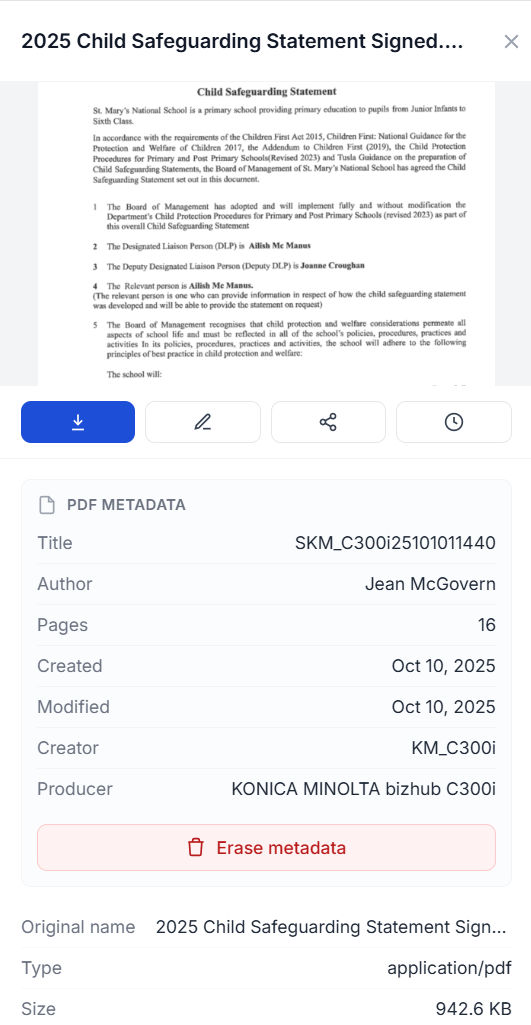
The file panel for a PDF: a first-page thumbnail, then the embedded metadata — Title, Author, Pages, Created/Modified dates and the originating software — followed by a single Erase metadata action. Everything the recipient would otherwise read invisibly is now on screen for you first.
Erase it in one click
If the panel shows metadata you do not want to send, the red Erase metadata button removes it. Click it, confirm, and the server does the careful work: it reads the current file, strips the entire document-information dictionary and the XMP metadata packet, verifies that nothing survived, and then writes the cleaned PDF back as a new version of the same file. The page content — your drawing — is untouched, byte for byte. Only the hidden passenger is gone.
Because the strip produces a new version rather than overwriting blindly, it slots neatly into the safety net we have built around every file: the previous revision is still in the file's version history, and the change is recorded in your workspace audit log — who erased the metadata, from which file, and when. The operation runs asynchronously in the background, so a large plan set does not hold up your browser; the panel refreshes to show the metadata is gone (and the Erase button disappears) once the new version lands.
Removing it everywhere it matters
Stripping metadata is only trustworthy if it is removed everywhere, not just from the copy you look at. On LightUp.Cloud a PDF is also made searchable, and that search index is rebuilt from the cleaned file after a strip — so the customer's name does not linger in search results after you have erased it from the document. The source of truth is the file itself: once the metadata is gone from the PDF, every downstream view of it reflects that.
Optional, deliberate, and yours to decide
We deliberately made this an optional, explicit action rather than an automatic scrub. Metadata is not always unwanted — sometimes the author and dates are exactly what a team needs to keep. So LightUp.Cloud surfaces the information and leaves the decision to you: you see precisely what a recipient would see, and you choose whether it travels with the file. For the architect who asked, that is the whole point — a moment of visibility, and a single click, between a plan and the people who should never have known whose house it is.
If your team sends design files, contracts, scans or reports to anyone outside the project, open one of them in LightUp.Cloud and look at its PDF metadata. You may be surprised by what has been quietly travelling with your documents all along — and relieved that it now takes one click to stop it.