
How LightUp.Cloud Prevents Data Loss
The worst day for any team is the one where a file simply isn't there anymore. Someone overwrote it, someone deleted the wrong folder, a sync script went rogue, or a laptop walked out the door. On most "clouds" the honest answer to "can we get it back?" is a shrug. On LightUp.Cloud, data-loss prevention is not a single switch — it is a layered safety net woven through every file in your workspace. This post walks through the four layers your team actually touches: a time-boxed recycle bin, full version history, version locking, and automatic alerts when something destructive happens.
Layer 1 — A recycle bin that buys you time
Deletion on LightUp.Cloud is a two-step affair. When a file is removed it does not vanish; it moves to your workspace Recycle Bin, where it waits to be rescued. Select the files you want and click Restore — they return to exactly where they lived. If you genuinely want them gone, Delete permanently is right there too, but it is a deliberate second decision, not an accident waiting to happen.
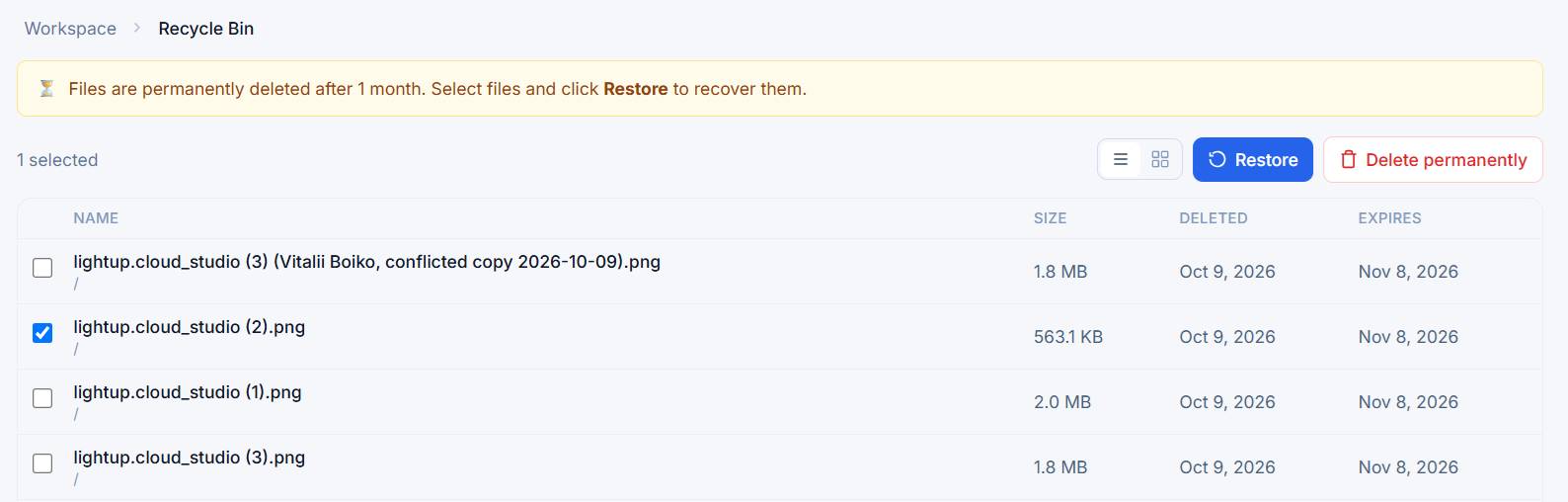
The Recycle Bin lists every deleted file with its size, the date it was Deleted, and the date it Expires — so you always know exactly how long you have to recover it.
The retention window is tied to your plan. The banner at the top of the bin spells it out — on this workspace, files are permanently deleted after 1 month — and every row shows an explicit Expires date (for a file deleted on Oct 9, that is Nov 8). Nothing disappears silently and nothing is purged before its time. Retention is enforced server-side by a background sweep, so you can lean on the deadline rather than guess at it.
Layer 2 — Every file carries its own history
Open any file and the info panel tells you everything that matters about it at a glance: its original name, type and size, when it was Uploaded and Last updated, who the Author is, which Version it is on, and its exact location and object key. From the same panel you can download, edit, share, or open the file's history.
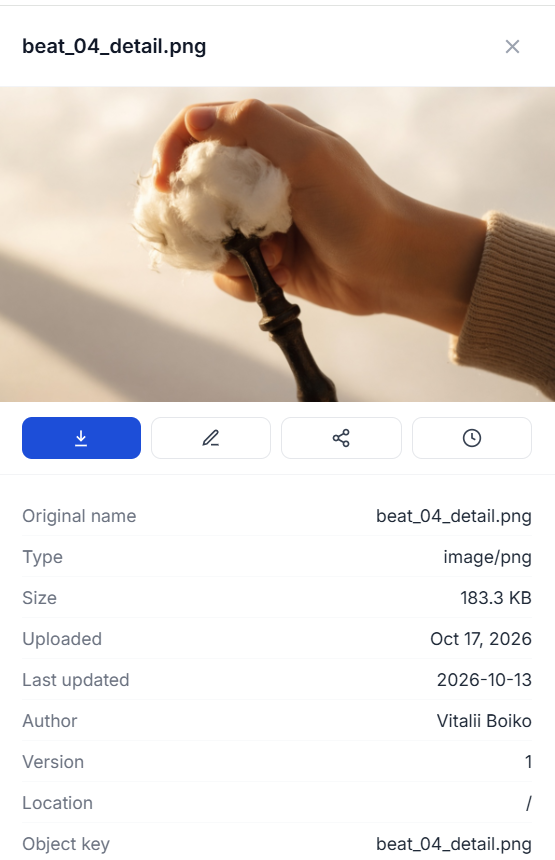
The file info panel. The clock icon on the right opens the version history; the other actions are download, edit and share.
That clock icon opens the Version history. Every time a file changes, LightUp.Cloud keeps the previous revision instead of throwing it away. Each entry records the version number, its size, who saved it, and a content fingerprint (MD5) so you can tell two revisions apart with certainty. The current version is clearly marked, and the whole timeline is one click away from the file itself.
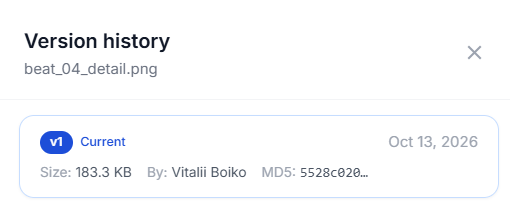
Version history for a file: each revision shows its version tag, size, author and MD5 fingerprint, with the current version highlighted.
Layer 3 — Restore an old version, or lock the right one
History is only useful if you can act on it. From the version timeline you can restore any previous version as the current one — the ideal escape hatch when a bad edit, a corrupted export, or an unwanted "improvement" slips in. The older revisions stay intact, so restoring is non-destructive: you are promoting a known-good version, not erasing the ones around it. This is also your first line of defence against ransomware and buggy sync clients, which tend to replace good files with garbage rather than delete them outright.
Sometimes the goal is the opposite of restoring — you want to make sure a file cannot change at all. When a design is signed off, a contract is final, or a master asset must not drift, you can lock a version. A locked version is protected from being overwritten by teammates, so nobody can accidentally (or carelessly) push a new revision over the one everyone agreed on. Locking turns "please don't touch this" from a Slack message into an enforced rule.
Layer 4 — When something goes very wrong, you hear about it
Recycle bins and version history protect against ordinary mistakes. The last layer is for the extraordinary ones: a disgruntled employee, a stolen credential, or a misconfigured script wiping out an entire library. LightUp.Cloud's built-in threat monitor watches the audit stream for destructive patterns and raises an alert the moment it sees one.
It watches for three things in particular: mass deletion (a flood of deletes in a short window, triggered either by an absolute count or by a large percentage of a library's files going at once), bulk purges of the recycle bin — irreversible deletions, flagged at critical severity — and a download-then-delete sequence, the classic "exfiltrate and wipe" signature, which is treated as high severity. Detection runs on a rolling five-minute window with a short cooldown so a single incident produces one clear alert, not a storm of them.
When the monitor fires, the workspace owner gets an email — subject line "Files were permanently removed from your recycle bin" for a bulk purge, or a clear mass-deletion notice — telling them exactly what happened: the library name, the date and time, how many files were affected and their total size. Crucially, the email also includes a restoration deadline and a direct link to the recycle bin, so the owner can jump straight to recovering the files while they are still within the retention window. A destructive event becomes an actionable notification instead of a silent catastrophe discovered weeks later.
Two design choices make this trustworthy. First, detection is always on and cannot be switched off — it is part of the platform, not an add-on. Second, it does not depend on being able to send email: on air-gapped or email-disabled deployments the alerts are still detected and persisted, where an admin or superadmin can review them in the web UI. And because background cleanup (the retention sweep itself) is tagged as a system actor, routine housekeeping never trips a false alarm — only real user activity does.
Defence in depth, by default
No single feature prevents data loss. A recycle bin won't help against a bad edit; version history won't help if nobody notices a library was wiped; a lock won't help if the file was never locked. LightUp.Cloud's answer is to layer them: a deletion has to survive the recycle bin's retention window, every edit leaves a restorable trail, critical files can be frozen, and anything that looks like a disaster lights up the owner's inbox. You keep control of where your data lives — and the confidence that you can get it back.